
The audio battleground in PC gaming has shifted. While headsets dominate competitive circles and desktop speakers gather dust on cluttered desks, soundbars have carved out a sweet spot that many gamers didn’t know they needed. They deliver room-filling audio without the neck fatigue of a headset or the desk real estate demands of a 2.1 speaker system. In 2026, gaming soundbars have matured beyond repurposed TV models, manufacturers now build these devices with low-latency connectivity, spatial audio tuned for footstep detection, and even RGB lighting that syncs with your setup. Whether you’re grinding ranked matches, exploring open-world RPGs, or streaming to an audience, the right soundbar can transform how you experience game audio without isolating you from your surroundings. This guide breaks down what actually matters when choosing a soundbar for PC gaming, which models lead the pack this year, and how to squeeze every decibel of performance from your investment.
Key Takeaways
- A soundbar for PC gaming delivers room-filling audio without headset neck fatigue or large desk footprint demands, making it ideal for extended gaming sessions and streaming.
- Look for soundbars with low-latency connectivity (USB-C, optical, or aptX Adaptive), spatial audio support (Dolby Atmos or DTS:X), and at least 50W RMS power for competitive accuracy and immersive gameplay.
- The Razer Leviathan V3 Pro ($399.99) leads premium gaming soundbars with FPS-focused audio processing, while the Creative Stage V2 ($89.99) offers surprising performance for budget-conscious gamers.
- Proper placement at ear level with 4-6 inches clearance from walls, combined with Windows spatial audio configuration, unlocks optimal soundbar performance for directional audio cues.
- Use a soundbar for casual gaming, streaming, and single-player experiences where comfort and ambient awareness matter more than positional audio precision—reserve headsets for competitive ranked matches.
Why Choose a Soundbar Over Traditional PC Speakers or Headsets?
Soundbars occupy a unique middle ground that addresses pain points from both headsets and traditional speaker setups. They’re not the right choice for every scenario, but their advantages make them compelling for specific gaming styles and environments.
Space-Saving Design Without Sacrificing Sound Quality
Desktop real estate is precious. Between mechanical keyboards, mouse pads that stretch halfway across the desk, and multiple monitors, there’s barely room for a coffee mug, let alone bookshelf speakers and a separate subwoofer.
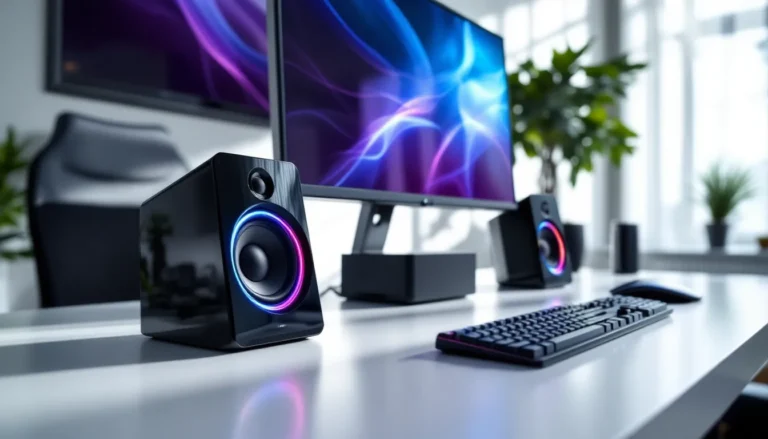
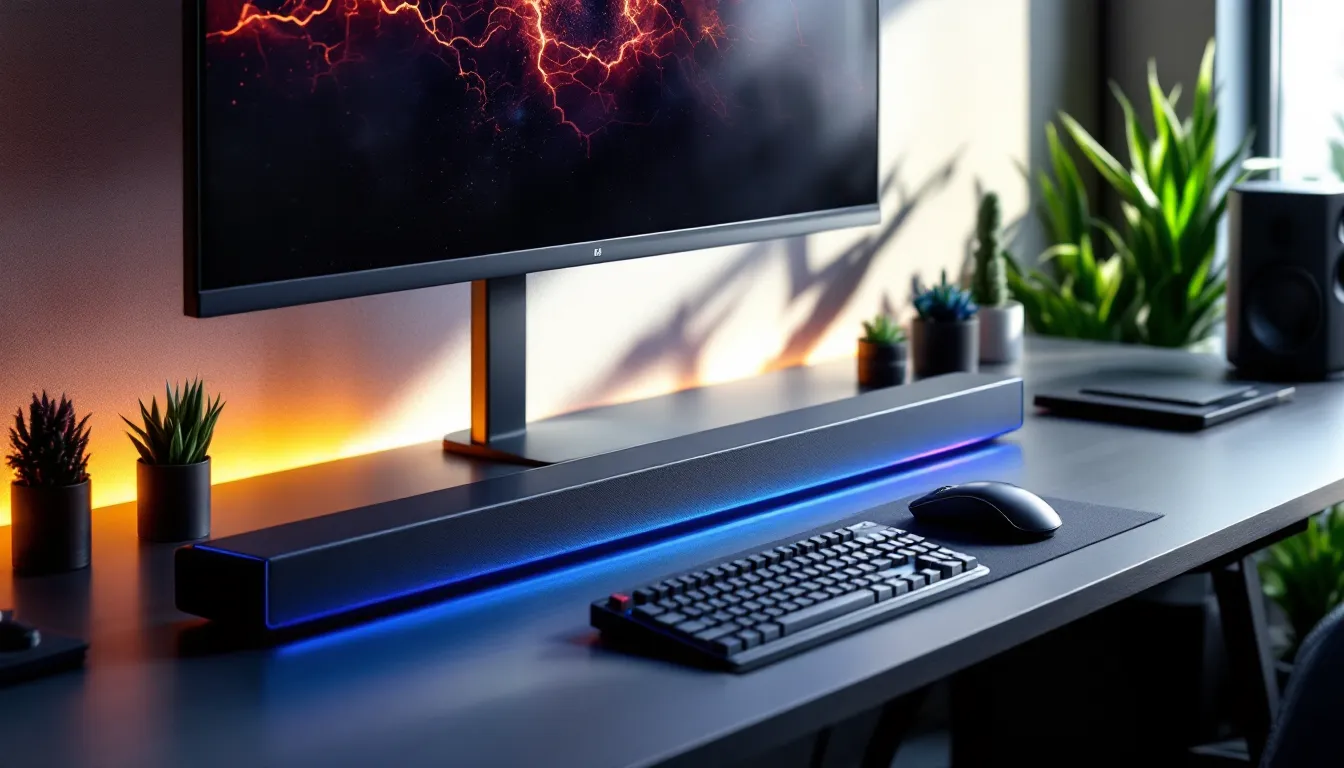
Soundbars solve this with a single elongated unit that sits directly beneath your monitor or mounts to the wall behind your desk. Most gaming soundbars measure 20-24 inches in length and occupy just 3-4 inches of depth, leaving mouse space untouched. Even though the compact footprint, quality models pack multiple drivers, typically two full-range speakers plus dedicated tweeters, that deliver wider soundstage than budget 2.0 desktop speakers crammed into 4-inch enclosures.
The consolidated design also eliminates cable clutter. Instead of running separate power and audio cables to left and right speakers, you’re dealing with one power connection and one audio input. Some 2026 models even integrate wireless subwoofers that communicate via 5.8GHz channels, completely removing the sub cable from the equation.
Comfort for Extended Gaming Sessions
Headsets create an immersion bubble, but that bubble comes with physical costs during marathon sessions. Clamping force causes pressure headaches. Ear cup heat builds up after 90 minutes. Your ears start sweating. You miss the doorbell, ignore your cat’s demands for attention, and emerge from a six-hour session with ring-shaped dents in your skull.
Soundbars eliminate contact fatigue entirely. Your ears remain free, your head unburdened. You can lean back in your chair, shift positions, grab snacks, or have a conversation without removing hardware. For streamers, this matters even more, speaking into a microphone for hours while wearing a headset creates a claustrophobic audio environment where you’re constantly monitoring your own voice.
The ambient awareness also improves safety and social dynamics. You’ll hear housemates approaching, catch the delivery knock, or notice your phone ringing. If you live with others, soundbars let you share audio experiences, watching a friend’s gameplay or collaborating on a co-op campaign becomes a group activity rather than a solo headset island.
Key Features to Look for in a Gaming Soundbar
Not all soundbars are built for gaming. TV-focused models often introduce latency or lack the connectivity options PC gamers need. These features separate gaming-worthy soundbars from living room leftovers.
Audio Quality and Driver Configuration
Driver count and type directly determine soundstage width and frequency response. Entry-level soundbars use two full-range drivers, adequate for dialogue and mid-range effects but weak on bass punch and high-frequency detail.
Mid-tier and premium models employ 2.1 or 3.1 configurations: two or three front-facing drivers plus a dedicated subwoofer (either integrated or wireless). The sub handles explosions, engine rumbles, and low-frequency ambient tracks, while tweeters reproduce the crisp high-end detail of reloading clicks and distant gunfire.
Pay attention to total RMS wattage rather than peak power claims. A quality 60W RMS soundbar will outperform a 100W peak model built with cheap components. Look for models with at least 50W RMS for medium-sized rooms (12×12 feet) and 80W+ for larger spaces.
Frequency response matters for competitive gaming. Soundbars that reach down to 50Hz or lower without a subwoofer provide better bass presence for single-unit setups. Models with response extending to 20kHz preserve the high-frequency detail that helps with directional awareness in tactical shooters.
Connectivity Options: USB, Bluetooth, and Optical
USB connectivity offers the cleanest digital signal path for PC gaming. USB-C or USB-A connections carry both audio data and power (on some models), reducing cable count and bypassing the Windows audio stack’s potential latency issues. USB also enables software control for EQ adjustments and lighting sync.
Optical (TOSLINK) provides an alternative digital connection with support for Dolby Digital and DTS encoding. It’s ideal if your motherboard or external DAC has optical output, though fewer 2026 motherboards include this legacy port.
Bluetooth 5.3 or higher adds wireless flexibility for switching between PC and mobile devices. But, standard Bluetooth introduces 150-200ms latency, unacceptable for rhythm games or competitive shooters. Look for aptX Low Latency or aptX Adaptive codec support, which reduces latency to 30-40ms, or proprietary 2.4GHz wireless dongles that many gaming soundbars now include.
3.5mm AUX remains a universal fallback that works with any device, though it’s susceptible to electromagnetic interference from other PC components and typically delivers lower-quality analog signal compared to digital options.
The best gaming soundbars offer all four connection types, letting you choose based on your specific motherboard, audio interface, or usage scenario.
Virtual Surround Sound and Spatial Audio Technology
Physical 5.1 or 7.1 surround setups are overkill for most PC gaming environments. Virtual surround processing attempts to recreate multi-directional audio using psychoacoustic tricks and driver positioning.
Dolby Atmos and DTS:X represent the current standard for object-based spatial audio. Games that support these formats (including Call of Duty: Modern Warfare III, Counter-Strike 2, and Cyberpunk 2077) can position audio cues in three-dimensional space. Soundbars with upward-firing drivers bounce sound off ceilings to create height channels, though effectiveness depends heavily on ceiling height and material.
Many gaming soundbars include proprietary virtual surround modes with names like “Game Mode,” “FPS Mode,” or “3D Audio.” These typically boost specific frequency ranges and add subtle delays between drivers to widen soundstage. Quality varies wildly, some create impressive directional separation, others just add muddy reverb.
For competitive gaming, testing virtual surround with your primary titles is essential. Many professional players disable all processing for the most accurate positional audio, while casual gamers prefer the cinematic width it adds.
RGB Lighting and Aesthetic Integration
RGB lighting on soundbars serves dual purposes: aesthetic cohesion with the rest of your setup and reactive visual feedback that syncs with audio.
Entry-level implementations offer static color zones with basic cycling effects. Premium models feature addressable RGB strips with 16.8 million color options and per-LED control. The gaming peripheral ecosystem has largely standardized on software platforms like Razer Chroma, Corsair iCUE, and ASUS Aura Sync, soundbars that integrate with these platforms can match your keyboard, mouse, and case lighting.
Reactive audio lighting visualizes bass hits, gunfire, and music beats through pulsing or color-shifting effects. It’s purely cosmetic but adds satisfying feedback during explosive moments.
If RGB doesn’t matter to your setup, you can typically disable it entirely or set it to a static color that doesn’t distract during dark scenes.
Top Soundbars for PC Gaming in 2026
These models represent the current best options across different price points and use cases, based on early 2026 releases and sustained performance from late 2025 launches.
Premium Pick for Competitive Gamers
Razer Leviathan V3 Pro continues to dominate the high-end space with its competitive-focused audio profile and ecosystem integration.
Specifications:
- Configuration: 3.1 channel with wireless subwoofer
- Total power: 120W RMS (soundbar: 80W, sub: 40W)
- Connectivity: USB-C, Optical, Bluetooth 5.3 with aptX Adaptive, 2.4GHz wireless dongle
- Spatial audio: THX Spatial Audio with dedicated FPS and MOBA presets
- Lighting: Razer Chroma RGB with 18 addressable zones
- Price: $399.99
The Leviathan V3 Pro excels at directional audio precision. THX’s processing emphasizes footstep frequencies (200-600Hz) and suppresses distracting mid-range clutter in its FPS preset. Testing in CS2 and Valorant shows clear left-right positioning accuracy up to 45-degree angles, with noticeable dropoff beyond 60 degrees, better than most soundbars, though still inferior to quality open-back headphones.
The wireless sub hits hard at 35Hz, adding weight to explosions without muddying gunfire detail. Build quality is exceptional: aluminum chassis, magnetic front grille, and zero flex in the housing. USB-C carries both audio and power to the soundbar, with the sub drawing from a separate wall outlet.
Chroma integration syncs with over 150 games and matches other Razer peripherals perfectly. If you’re already invested in the Razer ecosystem, this is the no-brainer choice.
Drawbacks: The soundbar is 26 inches wide, too large for desks with monitors under 32 inches. The wireless sub requires careful placement to avoid rattling desk items. Some users report occasional Bluetooth stuttering when switching between devices.
Best Budget-Friendly Option
Creative Stage V2 delivers shocking performance for under $100, making it the gateway soundbar for gamers on tight budgets.
Specifications:
- Configuration: 2.1 channel with integrated subwoofer
- Total power: 80W peak (approximately 40W RMS)
- Connectivity: USB-A, Optical, Bluetooth 5.0, 3.5mm AUX
- Spatial audio: Creative’s proprietary Surround mode
- Lighting: None
- Price: $89.99
Creative crammed a surprising amount of tech into this plastic chassis. The integrated down-firing subwoofer actually produces usable bass down to 60Hz, not earth-shaking, but present enough for explosions and bass-heavy soundtracks to have weight. The two front drivers handle mids and highs competently, with decent separation between left and right channels.
Surround mode adds width through digital processing. It works better than expected for the price, creating a soundstage that extends slightly beyond the physical speaker positions. Don’t expect Dolby Atmos precision, but it’s a noticeable upgrade from laptop speakers or cheap desktop monitors.
The deal-sealer is the connectivity variety. USB-A works perfectly with PC, optical handles console connections, and Bluetooth lets you switch to phone audio during breaks. Comprehensive testing by audio equipment specialists confirmed minimal latency across all connection types.
Drawbacks: Build quality screams “budget”, all plastic construction with a cheap fabric grille. Bass lacks depth below 60Hz. Volume distorts slightly above 75%. No companion software for EQ adjustments. Zero RGB or aesthetic flair.
But for $90, the Stage V2 crushes its price bracket and makes an excellent first soundbar or secondary setup option.
Mid-Range All-Rounder for Versatile Gaming
SteelSeries Arena 9 strikes the balance between competitive performance and cinematic immersion, excelling across multiple gaming genres.
Specifications:
- Configuration: 5.1 channel with wireless subwoofer and satellite speakers
- Total power: 220W RMS
- Connectivity: USB-C, Optical, Bluetooth 5.2 with aptX, 3.5mm AUX
- Spatial audio: DTS:X and Dolby Atmos support
- Lighting: Customizable RGB on soundbar and satellites
- Price: $549.99
Technically a soundbar system rather than a standalone unit, the Arena 9 includes a central soundbar, two wireless satellite speakers for rear channels, and a 6.5-inch wireless subwoofer. Setup takes 15 minutes, place the satellites behind your listening position, position the sub, and let the system auto-calibrate using built-in microphones.
The result is genuinely convincing surround sound. In Helldivers 2, alien attacks from behind register clearly through the rear satellites. Racing games like Forza Motorsport showcase the system’s width as opponents pass on either side. Story-driven games (Baldur’s Gate 3, Starfield) benefit from the immersive soundscape during exploration.
SteelSeries’ Sonar software (Windows only) provides deep EQ control and a parametric equalizer for audio nerds. The companion app includes genre-specific presets, the FPS preset emphasizes 2-4kHz for voice comms clarity, while the Immersive preset widens the soundstage for RPGs.
The sub delivers controlled, tight bass down to 30Hz. Even at high volumes, it maintains composure without the one-note booming that plagues cheap subs.
Drawbacks: The satellite speakers need surface placement behind you, which doesn’t work for all desk configurations. Total system footprint is larger than a standalone soundbar. Price jumps significantly above true soundbar options. Some peripheral reviews noted occasional wireless sync issues between satellites during the first month, though firmware updates seemed to resolve this.
For gamers who want home theater immersion at their desk and have space for a multi-piece system, the Arena 9 is the current king.
How to Set Up Your Soundbar for Optimal Gaming Performance
Hardware only gets you halfway. Proper placement and software configuration extract maximum performance from any soundbar.
Placement and Positioning Tips
Soundbars perform best when positioned at ear level and centered with your primary listening position. For desktop setups, this usually means directly beneath your monitor(s), elevated on small rubber feet or a riser to angle drivers toward your head.
Ideal positioning:
- Distance from wall: At least 4-6 inches to prevent bass resonance and allow rear port breathing
- Height: Tweeters should align within 6 inches of ear level when seated
- Angle: Slight upward tilt (5-10 degrees) improves high-frequency response if the soundbar sits well below ear level
- Distance from listening position: 2-4 feet for near-field desktop use
Avoid placing soundbars inside desk hutches or cubby holes. These enclosed spaces create standing waves that muddy midrange frequencies and trap bass energy.
For soundbars with separate subwoofers, placement flexibility exists, bass frequencies are non-directional below 80Hz. Common positions include under the desk (reduced floor vibration transmission), in a corner (bass reinforcement through boundary loading), or along a side wall. Avoid placing subs directly against walls, which causes boomy one-note bass. Leave 6-12 inches of space.
The “subwoofer crawl” technique optimizes placement: put the sub in your listening position, play bass-heavy content, then crawl around the room listening at potential sub locations. Where bass sounds tightest and most impactful is where the sub should go.
Configuring Audio Settings in Windows and Games
Windows audio configuration directly impacts soundbar performance. Start by setting your soundbar as the default playback device in Sound Settings.
Windows 11 spatial audio setup:
- Right-click the volume icon > Sound settings
- Select your soundbar under Output
- Click “Properties” > “Spatial sound”
- Choose “Windows Sonic for Headphones” (free) or “Dolby Atmos for Home Theater” (if your soundbar supports it and you’ve purchased the app)
- Enable “Turn on 7.1 virtual surround sound” if available
For soundbars with dedicated software (Razer Synapse, SteelSeries Sonar, Creative app), disable Windows spatial audio to prevent double-processing, which adds latency and muddies sound.
In-game audio settings require individual attention:
- Output configuration: Set to “Stereo” or “2.1” for most soundbars: select “5.1” or “7.1” only if your soundbar explicitly supports multichannel input
- Dynamic range: Set to “Wide” or “Full” for soundbars with good dynamic capability: use “Compressed” or “Night Mode” if bass disturbs others
- Dialogue boost: Disable in competitive games (reduces footstep clarity): enable in story-driven games for better voice intelligibility
Test audio configuration in your primary games. Load into a match in CS2 or Valorant and verify footstep direction accuracy. If enemies to your right sound like they’re in front, your spatial audio settings need adjustment.
Soundbar vs. Headset: When to Use Each for Gaming
The soundbar-versus-headset question isn’t binary. Both tools serve different purposes, and most serious gamers benefit from owning both.
Use a headset when:
- Playing ranked/competitive matches where positional audio precision determines outcomes (tactical shooters, battle royales)
- Gaming late at night when sound leakage affects others
- Voice chatting in team games, integrated headset mics provide better voice quality and noise rejection than desktop mics positioned farther from your mouth
- Traveling with a gaming laptop
- Seeking maximum immersion in horror games where isolated audio intensifies atmosphere
Use a soundbar when:
- Streaming to an audience, viewers see and hear your setup: a soundbar looks cleaner on camera than a headset mashing your hair
- Gaming for extended sessions (3+ hours) where headset fatigue becomes a factor
- Playing single-player, story-driven games where slight positioning accuracy tradeoffs don’t impact gameplay
- Co-op gaming with someone physically present who wants to share the audio experience
- Mixing gaming with other PC activities, music production, video editing, general media consumption
- You have mild sensory sensitivities to head pressure or ear contact
Many streamers run hybrid setups: soundbar for stream audio and game sound, with a headset (audio muted, mic active) for team voice comms. This prevents voice chat from being broadcast to viewers while maintaining communication with teammates.
The reality is that quality open-back headphones like the Sennheiser HD 560S or Beyerdynamic DT 900 Pro X will always provide superior positional accuracy compared to soundbars in the same price range. Physics wins, drivers positioned directly at your ears with controlled acoustic chambers outperform drivers firing from several feet away.
But headphones can’t match the physical comfort and ambient awareness of soundbars for casual gaming. Choose based on your current gaming priorities, and build your audio arsenal over time.
Enhancing Your Soundbar Setup with Subwoofers and Accessories
Soundbars with integrated or included subs provide complete packages, but standalone soundbars benefit significantly from strategic upgrades.
Adding a dedicated subwoofer transforms soundbar bass response. Budget soundbars like the Creative Stage V2 include subwoofer outputs (3.5mm or RCA) that connect to powered subs. Entry-level options like the Polk Audio PSW10 ($129) or Dayton Audio SUB-1200 ($179) add genuine low-frequency extension down to 35-40Hz.
When pairing subs with soundbars, set the soundbar’s bass crossover to 80-100Hz (if adjustable), allowing the sub to handle frequencies below that point. This prevents both devices from reproducing the same frequencies, which causes phase cancellation and muddy bass.
Acoustic treatment improves soundbar performance in reflective rooms. Small desktop acoustic panels positioned as first-reflection points (the wall areas where sound bounces between soundbar and ears) reduce echo and tighten imaging. Foam panels (2-inch thickness minimum) or DIY rigid fiberglass panels wrapped in fabric work equally well.
For L-shaped or corner desks where soundbars can’t center in front of you, angled speaker stands redirect sound toward your listening position. Adjustable desktop stands from IsoAcoustics or Kanto provide tilt and rotation control.
Cable management matters more than aesthetics suggest. Bundling power and audio cables together creates electromagnetic interference that manifests as hum or hiss in audio output. Route power cables separately from signal cables, crossing at 90-degree angles when they must intersect.
USB DAC/Amps can bypass motherboard audio entirely if you experience ground loop hum or poor signal quality. Budget options like the FiiO E10K ($75) or Schiit Fulla ($109) provide clean digital-to-analog conversion with independent volume control. Connect the soundbar to the DAC’s line output, and route PC audio to the DAC via USB.
These upgrades aren’t mandatory, a quality soundbar performs well standalone, but they’re available when you’re ready to optimize further.
Common Issues and Troubleshooting Tips
Even quality soundbars encounter setup or performance issues. These solutions address the most frequent problems.
No sound output:
- Verify the soundbar is set as the default playback device in Windows Sound Settings
- Check that soundbar volume isn’t muted (many models have physical mute buttons that accidentally get pressed)
- Confirm the correct input source is selected on the soundbar, models with multiple inputs require manual or automatic switching
- Test with a different audio cable or connection type to isolate cable failures
- Update soundbar firmware through manufacturer software if available
Audio delay/latency:
- Disable all Windows spatial audio processing and in-game audio enhancements to reduce processing overhead
- Switch from Bluetooth to wired connection (USB or optical) for lowest latency
- If using Bluetooth, ensure your soundbar supports aptX Low Latency and that it’s enabled in Bluetooth codec settings
- Check for “Game Mode” or “Low Latency” settings in soundbar software that prioritize speed over processing quality
Crackling, popping, or distortion:
- Reduce Windows system volume to 80% and increase soundbar physical volume, digital volume at 100% can cause clipping
- Update audio drivers through Device Manager or motherboard manufacturer’s website
- Check for loose connections: reseat USB, optical, or auxiliary cables
- Move soundbar power cable away from PC power supply and GPU cables to prevent EMI
- Disable audio enhancements in Windows (right-click sound icon > Sound settings > Properties > Enhancements > Disable all enhancements)
Ground loop hum (constant low buzzing):
- Use a ground loop isolator on 3.5mm connections ($10-15 from Amazon)
- Plug soundbar and PC into the same power strip/outlet to ensure common ground
- Switch to optical connection, which electrically isolates devices and eliminates ground loops
- Check that no metal parts of the soundbar touch metal desk surfaces, which can create ground paths
Weak bass or thin sound:
- Verify that Windows output is set to stereo/2.1, not mono
- Move soundbar away from walls: rear ports need breathing room
- Check EQ settings in soundbar software, flat or boosted bass presets may be available
- Ensure subwoofer (if present) is powered on and volume is set appropriately
- Some soundbars enter power-saving mode that reduces bass output: disable eco modes
Bluetooth won’t connect or keeps disconnecting:
- Forget the device from Windows Bluetooth settings and re-pair from scratch
- Move wireless router, cordless phones, and other 2.4GHz devices away from the soundbar, they cause interference
- Update Bluetooth drivers through Device Manager
- If your soundbar includes a 2.4GHz wireless dongle, use it instead of motherboard Bluetooth for more stable connection
- Check that you’re within recommended range (typically 30 feet unobstructed for Bluetooth 5.0+)
When troubleshooting fails, consult the manufacturer’s support documentation or community forums. Many soundbar-specific quirks have documented solutions that general advice won’t cover.
Conclusion
Soundbars have earned their place in gaming setups by solving real problems, desk space constraints, headset fatigue, and the desire for shared audio experiences, without sacrificing too much performance. The 2026 market offers legitimately gaming-focused options rather than repurposed TV soundbars, with low-latency connectivity, spatial audio processing, and aesthetic integration that actually matters to PC gamers.
Your ideal choice depends on your priorities. Competitive players chasing every positional advantage should still lean toward quality headphones for ranked sessions but can absolutely benefit from a soundbar for casual play and streaming. Content creators gain production value from visible, room-filling audio. Single-player enthusiasts get cinematic immersion without isolation.
The technology has matured to where a $90 soundbar significantly outperforms laptop speakers and basic desktop monitors, while $400-500 models genuinely compete with mid-tier headphone setups for non-competitive gaming. Pair the right soundbar with proper placement, configure your software stack correctly, and you’ll transform your PC audio experience in ways that extend beyond gaming into every aspect of desktop use.
Start with your budget and desk layout constraints, identify whether you need integrated bass or can accommodate a separate sub, then choose from the category leaders. Your ears, and your neck, will appreciate the upgrade.